Step-by-Step Guide: Convert Photos to Bead Patterns with Local AI
Step-by-Step Guide: Convert Photos to Bead Patterns with Local AI
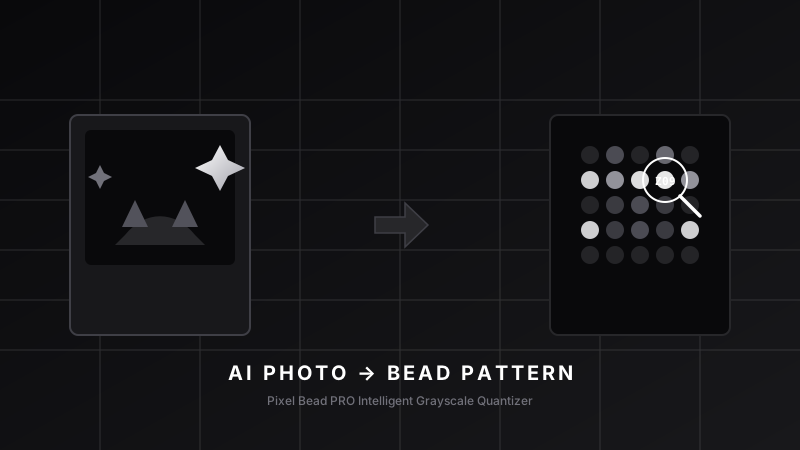
Welcome to the official Pixel Bead PRO guide. In this article, we will walk you through our core feature—AI Image to Pattern—to turn your favorite photos (pets, anime avatars, or portraits) into 1:1 pixel bead grid charts with a structured stock checklist.
Step 1: Upload Your Photo
Enter the AI Image to Pattern workspace, then click the file area or simply drag and drop your photo.
For the best conversion results:
- Use photos with a clear, prominent subject.
- Ensure even lighting and avoid harsh, distracting shadows.
- High-contrast illustration or cartoon vectors work exceptionally well.
Step 2: Local AI Background Removal
In traditional pixel art design, removing a messy background manually is tedious. Pixel Bead PRO solves this with a web-based neural network background removal engine running entirely inside your browser (offering 100% privacy and lightning-fast speeds):
- Toggle the "Background Removal" option on the sidebar.
- The algorithm instantly separates the main subject and cuts out the background.
Step 3: Color Quantization & Brand Palettes Matching
This is the most critical stage of perler bead designing:
- Select Your Brand: The editor supports industry-standard palettes from Perler (5.0mm), Hama (5.0mm), and Artkal (M/S Series).
- Choose Pegboard Size: Define your final canvas dimensions, such as a single 29x29 pegboard or custom arrays.
- Color Dithering: Choose a dither algorithm to recreate rich gradients using a minimal color palette.
Step 4: Export Vector Charts & Excel Buy Sheets
Once you are satisfied with the real-time preview, click the unified export panel:
- 1:1 High-Res Grid Chart: Each grid slot contains the exact brand color code printed inside it. You can print it out and place it right under a transparent board!
- Excel Inventory Count Checklist: A structured sheet summarizing all color codes, names, and exact bead counts needed, making shopping simple and cheap.
Head over to the Image to Pattern workspace and design your first craft now! If you have any suggestions, feel free to use the "Contact Dev" button.