Guide to the New Pegboard Bead Mode Workspace: Your Interactive Assembly Assistant
Guide to the New Pegboard Bead Mode Workspace: Your Interactive Assembly Assistant
For pixel art and perler bead craft enthusiasts, transforming digital design drafts into physical masterpieces on a real pegboard can be an exhausting task. Counting grids, matching brand color codes, and tracking placement coordinate values column by column are tedious, and a single mistake can ruin the layout.
To solve this pain point once and for all, Pixel Bead PRO has released the brand new Bead Mode Workspace. It acts as your immersive physical pegboard assembly assistant. In this guide, we will walk you through the core highlights and tips of this module to help you build physical bead crafts smoothly and efficiently.
Key Feature 1: One-Click Local Pattern Loading
Whether your draft is generated via the Image-to-Pattern AI quantizer, designed in the Text-to-Pattern typography engine, or constructed pixel-by-pixel in the Layer Editor, you can load it directly into the Bead Mode:
- Database Synchronized: The workspace reads stored design drafts directly from IndexedDB local database storage.
- Top-Layer De-duplication: For multi-layer editor projects, the converter automatically merges overlapping layers and calculates material counts using visible top-most pixels only, ensuring 100% accurate bead usage counting.
Key Feature 2: Zoomable Infinite Canvas & Dual-Axis Rulers
To accommodate projects of all dimensions—from small keychains to huge multi-board murals—the workspace provides an interactive infinite canvas:
- Zooming and Panning: Easily pan around the workspace by clicking and dragging with your mouse or finger, and zoom in/out with your wheel without any quality loss.
- Locked Axis Rulers: Viewport-locked horizontal and vertical coordinate rulers are placed on top of the canvas, telling you exactly which grid you are editing. It also features bold helper grid lines (defaulting to every 10 grids) to mirror physical pegboard sections.
- Flat Crisp Square Pixels: Pixels are rendered as flat, solid color squares overlayed with sharp contrasting brand color codes, matching the layout of the Image-to-Pattern dashboard.
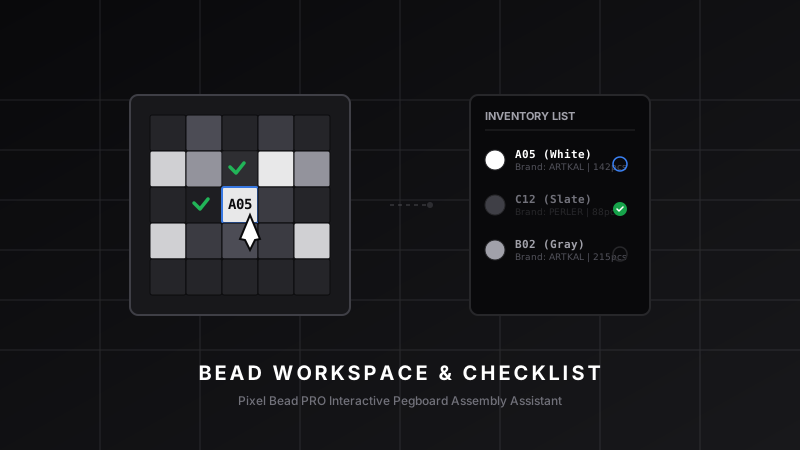
Key Feature 3: Inventory List & Target Color Isolation
Handling a pattern with dozens of shades? The left inventory panel has you covered:
- Target Color Highlighting: Click any color card in the inventory list, and the canvas will immediately isolate it. All other colors (including completed checkmarks) will fade out to
10%opacity. This "darkroom-style" focus allows you to check off colors one by one. - Group Status Check: Toggle all beads of a specific color code as "placed" or "unplaced" with a single click, which is ideal for users who construct their crafts color by color.
Key Feature 4: Interactive Checked Marks & Auto-Save
Tracking placement progress is satisfying and interactive:
- Tap-to-Check: As you place beads on your real pegboard, tap the corresponding grid cell on your screen (supports touch gestures for iPad/tablets). It will be marked with a green checkmark, and the underlying bead will fade out to
18%opacity. - Local Auto-Save: Your checked matrices are automatically saved to the browser's
LocalStorage. Even if you accidentally close the browser tab or shut down your PC, you can resume exactly where you left off. - Clean Reset: Want to share the draft with friends or rebuild the model? The top-right reset button opens a shadcn
AlertDialogdialog to clear all checkmarks safely.
Tips for Working in the Bead Mode Workspace
For the best crafting experience, we recommend this standard workflow:
- Preparation: Click the "Load Pattern" button to fetch your design draft.
- Material Inspection: Check the "Inventory List" on the left sidebar to prepare the correct Artkal/Perler beads and counts.
- Color-by-Color Assembly (Recommended): Highlight a color code to dim everything else. Place all beads of this color on the physical pegboard first, and tap the grid cell on your screen to mark progress.
- Auto-Saved: Rest easy as your progress is auto-saved locally in real time.
告别数格子,告别对色差。Let's try the Bead Mode Workspace of Pixel Bead PRO today and enjoy a smart, relaxing, and focused craft journey!