Advanced Bead Pattern Guide: Using 'Color Exclusion' to Customize Your Palette
Advanced Bead Pattern Guide: Using 'Color Exclusion' to Customize Your Palette
For bead crafting (Perler/Artkal Beads) fans, one of the most frustrating moments is finalizing a design only to realize that certain bead colors are out of stock, or that you only need a couple of beads of a specific color and don't want to buy an entire new bag.
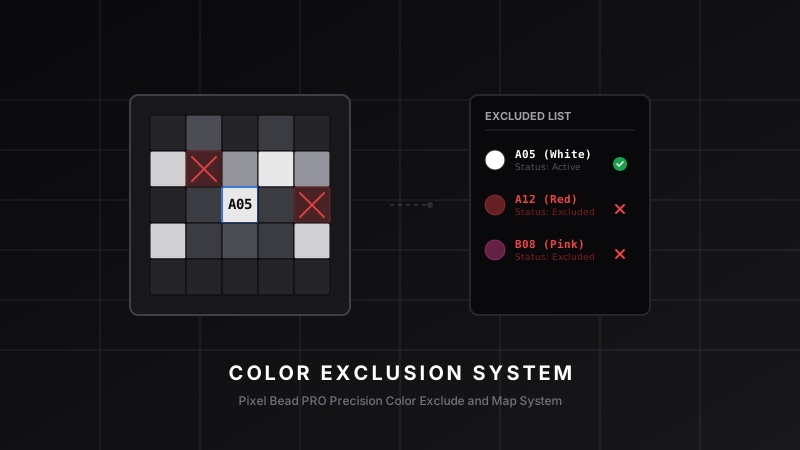
To solve this, Pixel Bead PRO has introduced a brand new "Color Exclusion" (排除色号) multi-select filter feature across the converter workspaces!
This guide will explain how to leverage this feature in both the Image to Pattern Converter and Screenshot Color Recognition tools to plan your inventory efficiently.
What is the "Color Exclusion" Feature?
When converting an image to a bead pattern, the converter automatically matches pixels to the closest colors available in the selected manufacturer palettes.
With the new "Color Exclusion" feature, you can explicitly designate which specific color codes to bypass. The conversion algorithm will filter those colors out of the source palette and recalculate the image using only the remaining colors.
This is incredibly useful if:
- You are missing certain color codes in your physical inventory.
- Certain colors are out of stock globally.
- You want to consolidate color counts to keep bead purchasing costs low.
Using Exclusions in the Image Converter
- Upload Image: Load your photo or pixel art inside the workspace.
- Select Brands: Choose the bead brands/types you want to use.
- Add Exclusions: Under the "Exclude Colors" section in the parameters panel, click "Exclude Color" and search for codes (e.g.,
A02orBlack) or names in the dropdown to add them to your exclusion list. - Automatic Remapping: The system will dynamically re-process the image, mapping those pixel blocks to the next closest active color code.
Exclusions in Screenshot Color Recognition
In the latest update, the Screenshot Color Recognition module also supports color exclusions.
When you upload a gridded screenshot to recover bead color codes:
- Add any colors you want to avoid in the settings panel.
- The matching algorithm will compare cell grid pixels only against your unexcluded colors.
- The excluded colors configuration is saved directly to your project's
recognitionParamsin IndexedDB, preserving your choices if you auto-save, reload, or share the project.
Try it out today and streamline your bead crafting workflow!